


Zoom Rooms are dedicated classroom systems that help instructors coordinate in-person and remote learning. Each Zoom Room includes a camera, a large TV display, and a ceiling-mounted microphone.
You can share content from the classroom iMac or by connecting a personal device (laptop, tablet, or phone) either physically using the provided HDMI cable or wirelessly using the Zoom Rooms sharing feature.
In-Person Classes Only
Follow these instructions to share content to TV when all students are attending class in person.
1. Turn on the technology
-
Press the ON button on the TV remote control.
-
Tap the Zoom Room touch panel to wake the system and display the Zoom menu.
-
Wake the teaching computer (iMac) by moving the mouse or pressing a key. If it is powered off, press the power button to turn it on.
2. Share content without a Zoom meeting
-
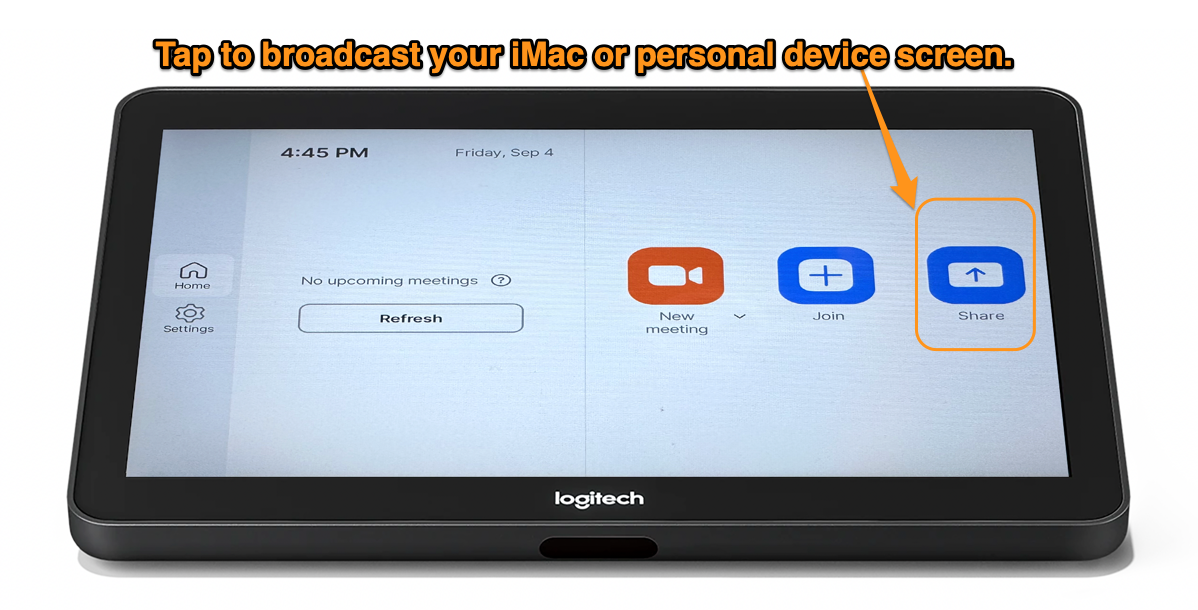
On the touch panel, tap Share.
-
Classroom iMac: If no external device is connected, the iMac display will automatically appear on the TV screen.
-
Personal Laptop/Device: To share your display, connect your laptop using the provided HDMI cable (HDMI takes priority and displays automatically). For wireless sharing, tap Share on the touch panel and follow the on-screen prompts.
Hybrid Classes (In-Person & Virtual)
Follow these instructions to share content when students are joining both in person and virtually.
1. Turn on the technology
-
Press the ON button on the TV remote control.
-
Tap the Zoom Room touch panel to wake the system and display the Zoom menu.
-
Wake the teaching computer (iMac) by moving the mouse or pressing a key. If it is powered off, press the power button to turn it on.
2. Join the Zoom meeting
-
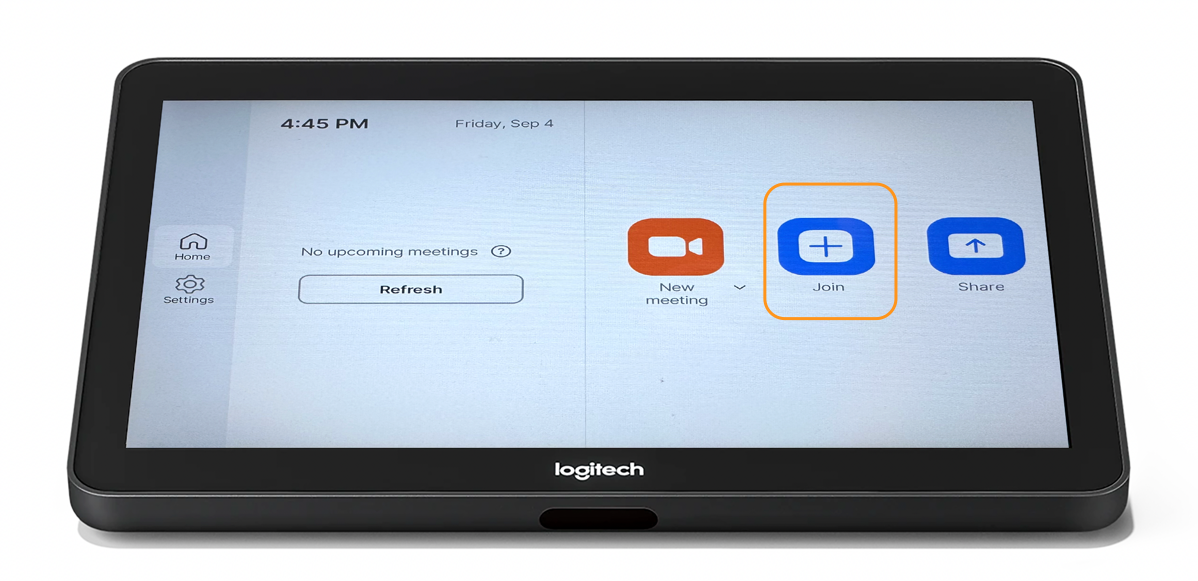
On the touch panel, tap Join.
-
Enter the Meeting ID for the session you created and shared with your virtual participants.
3. Share content in the Zoom meeting
-
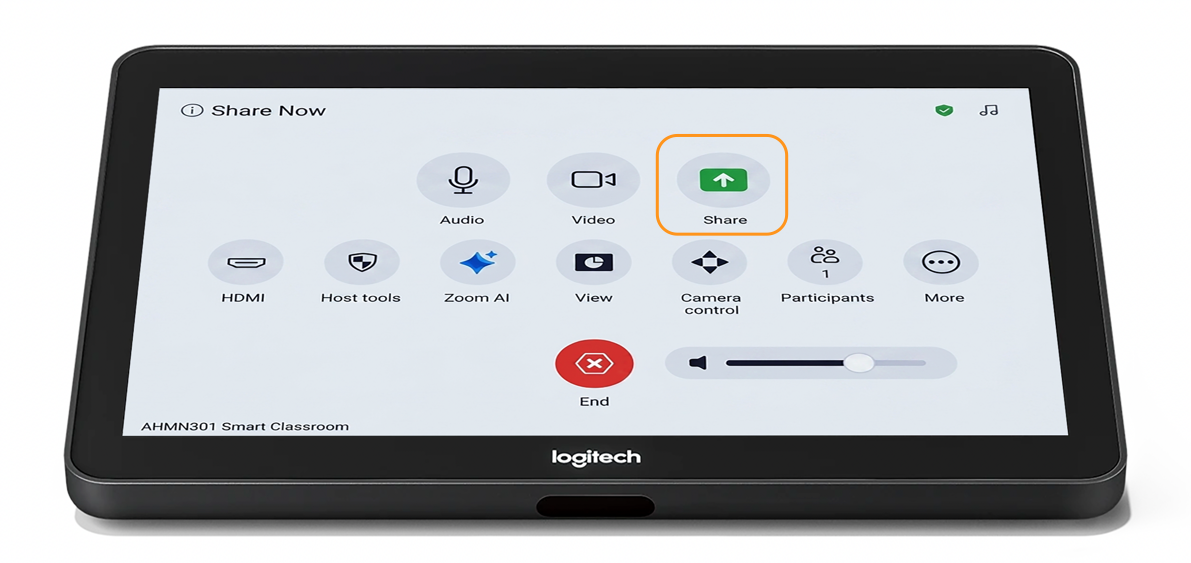
On the touch panel, tap Share.
-
Classroom iMac: If no external device is connected, the iMac display will appear on the TV screen and be shared with virtual participants.
-
Personal Laptop/Device: To share your display, connect your laptop using the provided HDMI cable (HDMI takes priority and displays automatically). For wireless sharing, tap Share on the touch panel and follow the on-screen prompts.

