


LAS Classroom AV & Presentation Instructions
Last updated: Sep 08, 2026
218
views

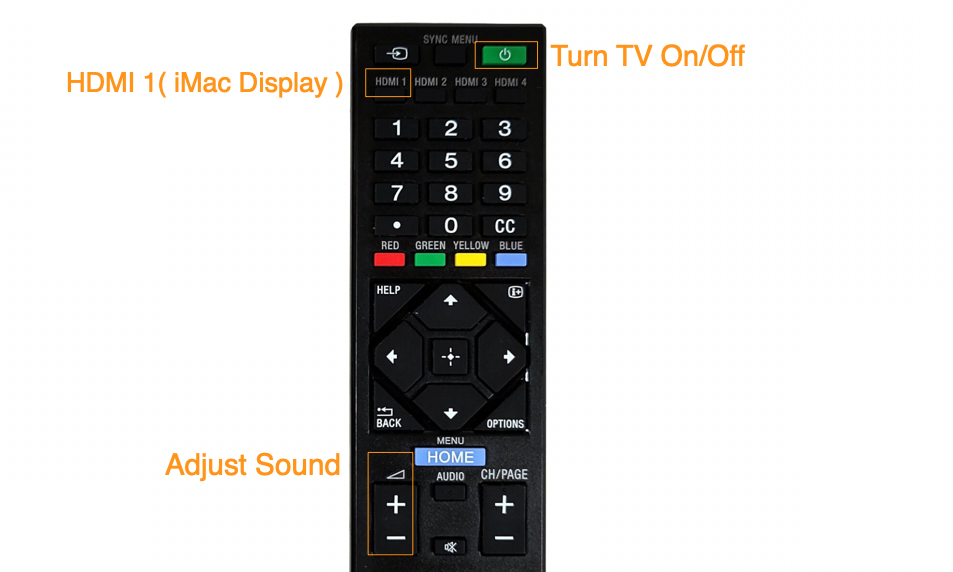
All 3rd-floor LAS classrooms (Rooms 312, 313, 314, 315, & 316 ) feature a large flat-screen TV with a remote located at the instructor's station. Please use the remote to turn the display on at the start of class and power it off when finished.
NOTE:
- Please note that the instructor's workstation (iMac) is wired to the TV display using the HDMI 1 port.
- Dedicated laptop HDMI cables with USB-C adapters are coming soon. For now, please temporarily unplug the HDMI cable from the iMac and connect it to your laptop.
Quick Step-by-Step Guide
-
Power On: Use the remote at the instructor's station to turn on the TV.
-
Select Input: The teaching iMac is connected to HDMI 1. If the display is blank, press the HDMI 1 button on the remote.
-
Power Off: Turn off the TV at the end of your session.
🛠️ Troubleshooting:
- No Sound: If audio is not playing from the TV, verify that SONY is selected as the audio output device in the iMac Sound settings.
- No Video / Screen Not Mirroring: If the TV is turned on but not displaying your screen, follow the display mirroring instructions to project the iMac screen.
-
Need Further Help? If the issue continues, please contact:
-
Media Services: (310) 665-6972
-
Computer Lab: (310) 665-6825
-

