


Zoom includes a built-in recording feature that lets you record meetings and save them directly to Zoom cloud storage. This feature is useful for recording presentations, lectures, and meetings for future viewing.
Instructions
-
Start your Zoom meeting. Launch Zoom and begin your meeting.
-
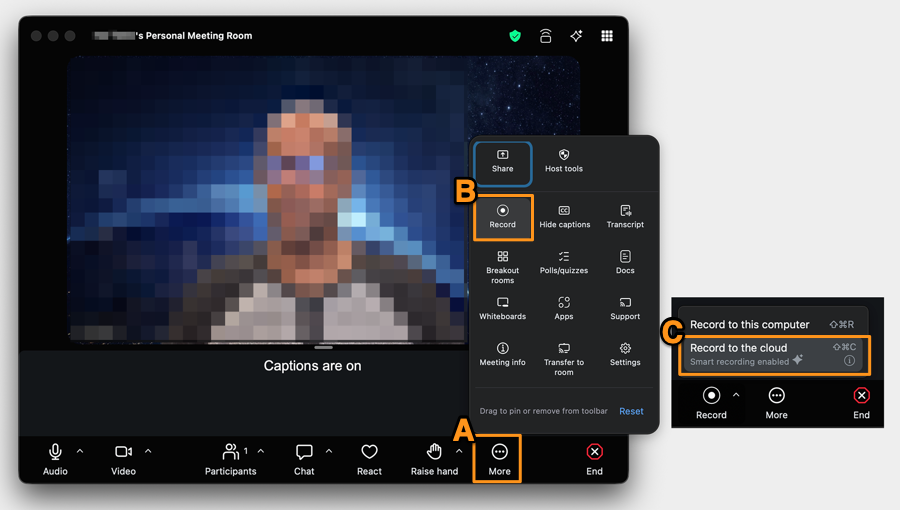
Locate the Record button. Click Record in the meeting toolbar at the bottom of the Zoom window. If you don't see it, click the More (...) icon to find the recording option.
-
Select Record to the Cloud. Choose Record to the Cloud to begin recording.
-
Manage your recording. While recording, you can use the Pause or Stop controls in the recording toolbar or the main meeting toolbar.
-
End the meeting. When you are finished, end the Zoom meeting. Zoom will automatically process the recording and save the video as an MP4 file to your Zoom cloud storage.
Important: Recording PowerPoint or Other Presentation Slides
If you want your presentation slides to appear in the recording, the presenter must share their screen or the specific window containing the slide deck using Zoom's Share Screen feature before presenting.
Simply having the slides open on your computer will not include them in the recording unless they are shared during the meeting.

