How to change the language your Mac uses to Japanese
Last updated: Nov 06, 2026
77
views

NOTE: The article below is based on Apple Support. For more detailed instructions, please refer to the original Apple Support guide.
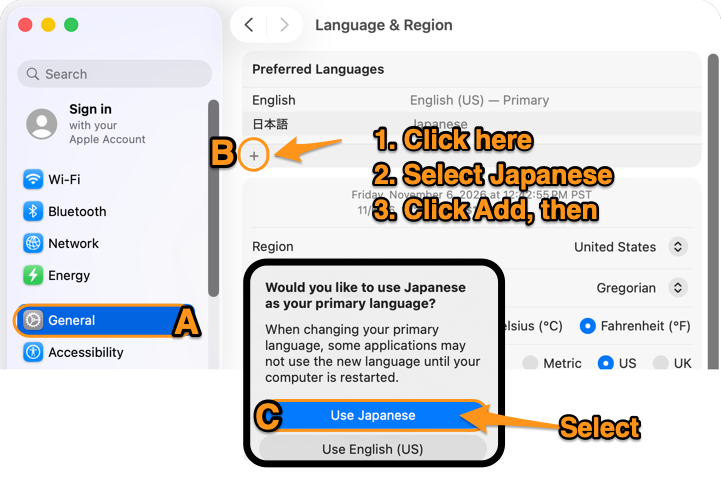
Step 1: Change Your Mac's Display Language to Japanese
On your Mac, choose the Apple menu > System Settings, click General
in the sidebar, then click Language & Region
.
Step 2: Add a Japanese Keyboard Input Source
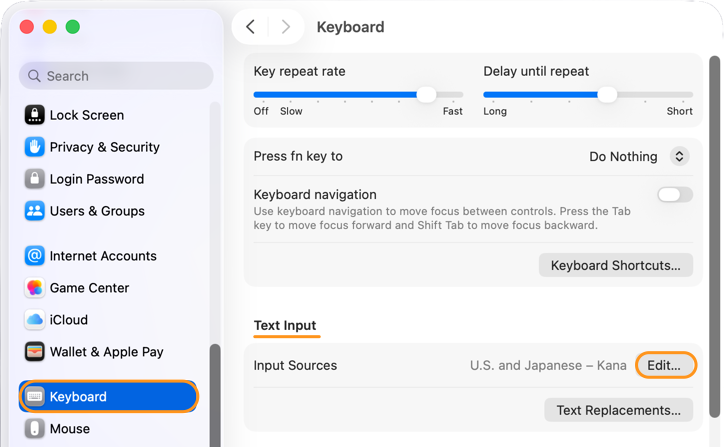
- On your Mac, choose the Apple menu
> System Settings, then click Keyboard
in the sidebar. (You may need to scroll down.)
- Go to Text Input, then click Edit
- Click
, then search for Japanese
- Click Add
- To begin writing in Japanese, select the language in the Input menu in the menu bar.